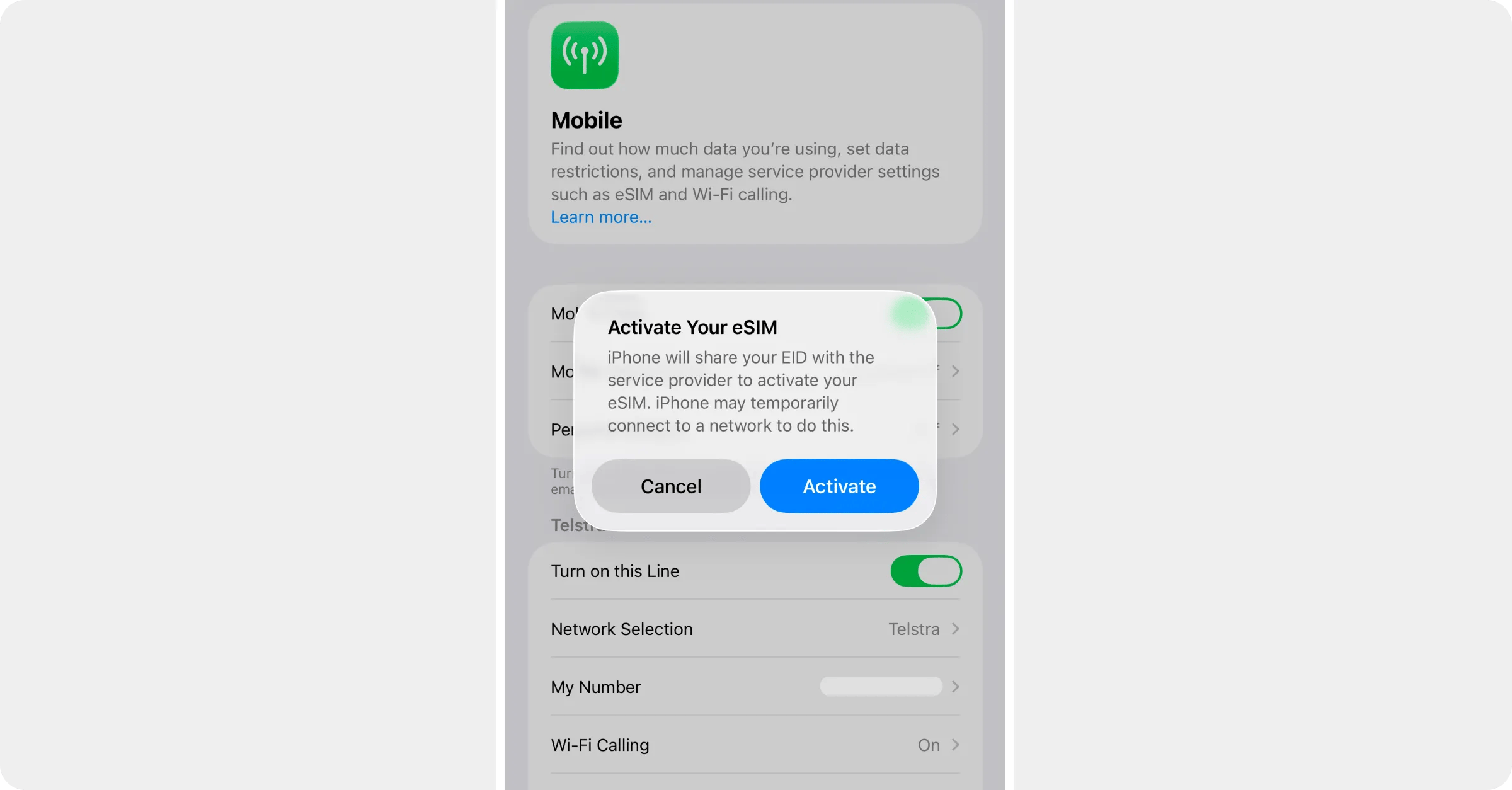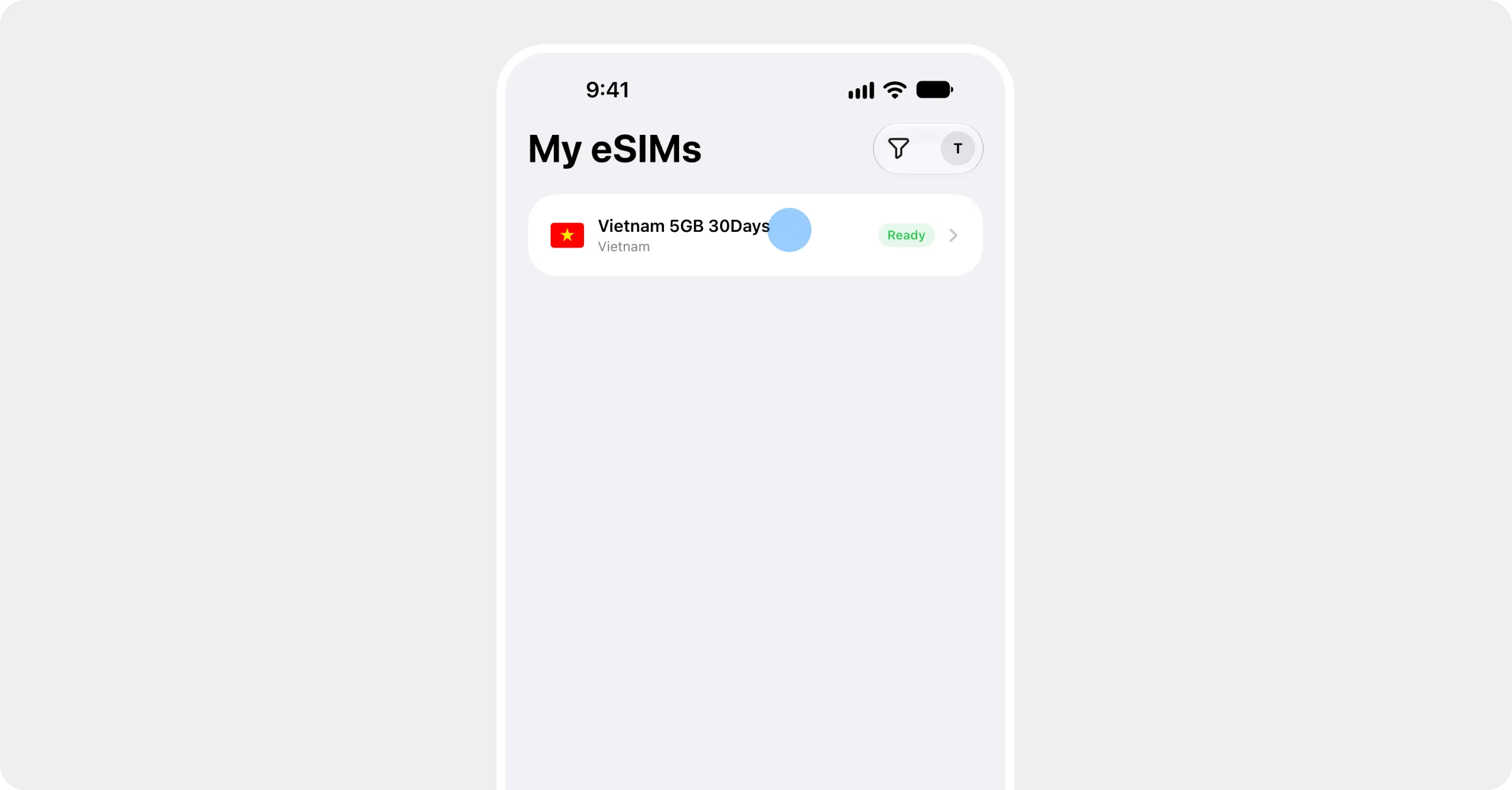
Heading level 1
Heading level 2
Heading level 3
Heading level 4
Heading level 5
Heading level 6
Body text
A normal paragraph of body text, long enough to wrap onto a second and third line on a phone so the line height and paragraph spacing can be judged. Roamly sells prepaid mobile data for travel, delivered as an eSIM, and this sentence keeps going until it has definitely wrapped. Inline styles: bold, italic, bold italic,inline code, a link to the site, a link to another article, and an emoji ✈️. Currency needs escaping in the source: $5 off, $0.50 minimum, $75 to reach Gold.
A second paragraph, shorter.
A blockquote. Mintlify renders this with a left rule. Plain markdown quotes are rare in the articles; callouts do most of this work.
Lists
- An unordered list item
- Another, with bold and a link
- A nested item
- Another nested item
- A third top-level item
- An ordered list item
- A second, with
inline code - A third
- A task-list item, unchecked
- A task-list item, checked
Table
A wider table to test horizontal overflow on a phone:
Code
Inlinecode and a fenced block:
Callouts
A note. Neutral information the reader should have.
An info callout. Mintlify styles it the same family as a note.
A check. Confirmation that a step worked: your plan now shows Installed.
Steps
1
A step with body text
Steps carry the how-to articles. Each has a title, then body text, and can contain lists, callouts and screenshots.
2
A step with a list and a callout
- First thing to check
- Second thing to check
3
A step with a screenshot
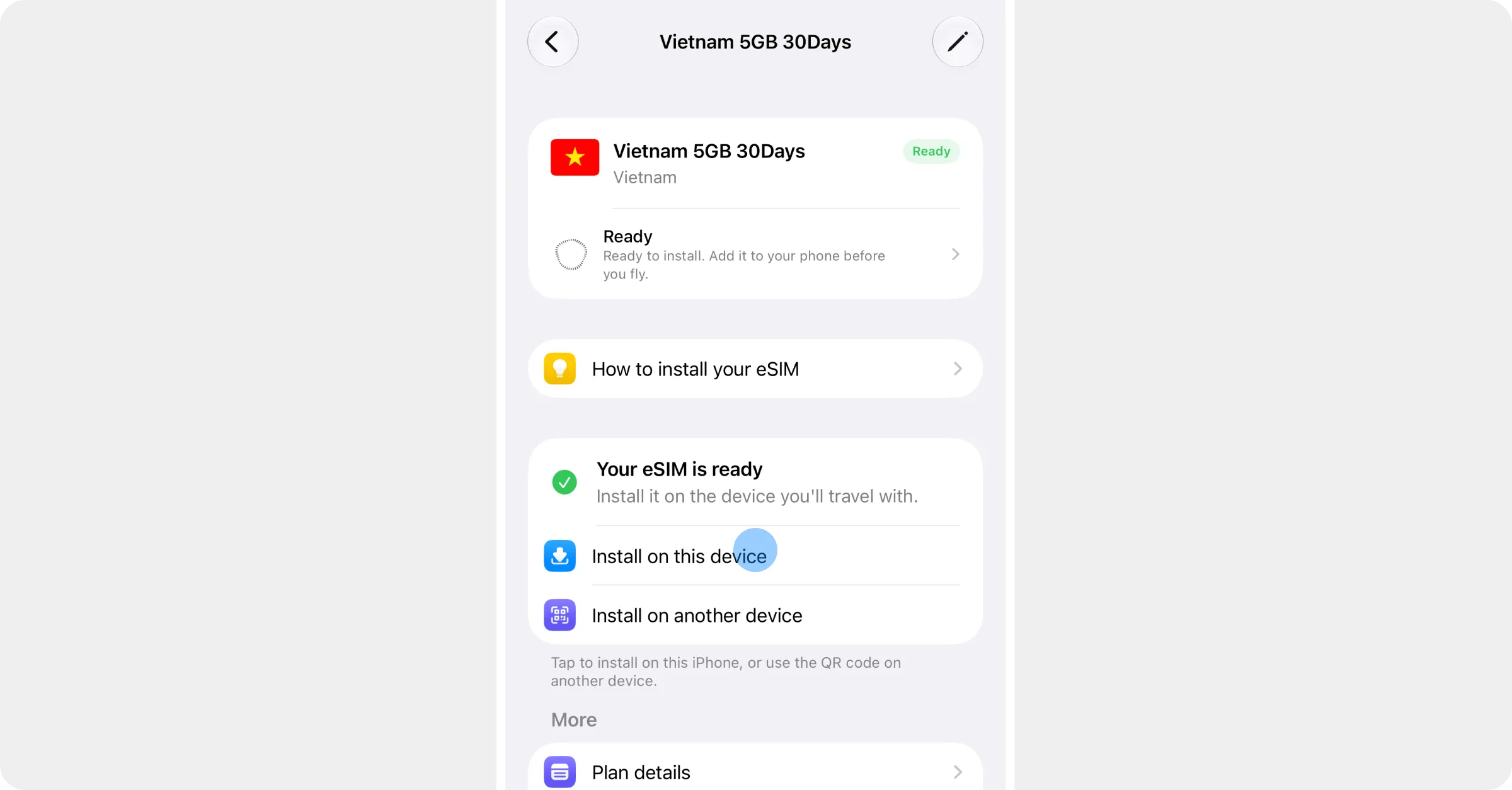
A screenshot inside a step, with a caption
Tabs
- iPhone
- Android
- Third tab
Tab content for iPhone.
1
Steps inside a tab
Open Settings → Mobile.
2
Second step
Tap your Roamly line.
Accordions
An accordion item
An accordion item
Body text inside an accordion. The Rewards FAQ uses these.
Another item, with a list
Another item, with a list
- One
- Two
Cards
Installing your eSIM
Step-by-step for iPhone and Android.
Troubleshooting
Before you go, at your destination, and the settings behind it all.
A card in Columns
Columns is Mintlify’s newer layout wrapper; it should look the same as CardGroup.
A card with no link
No href on this one.
Images
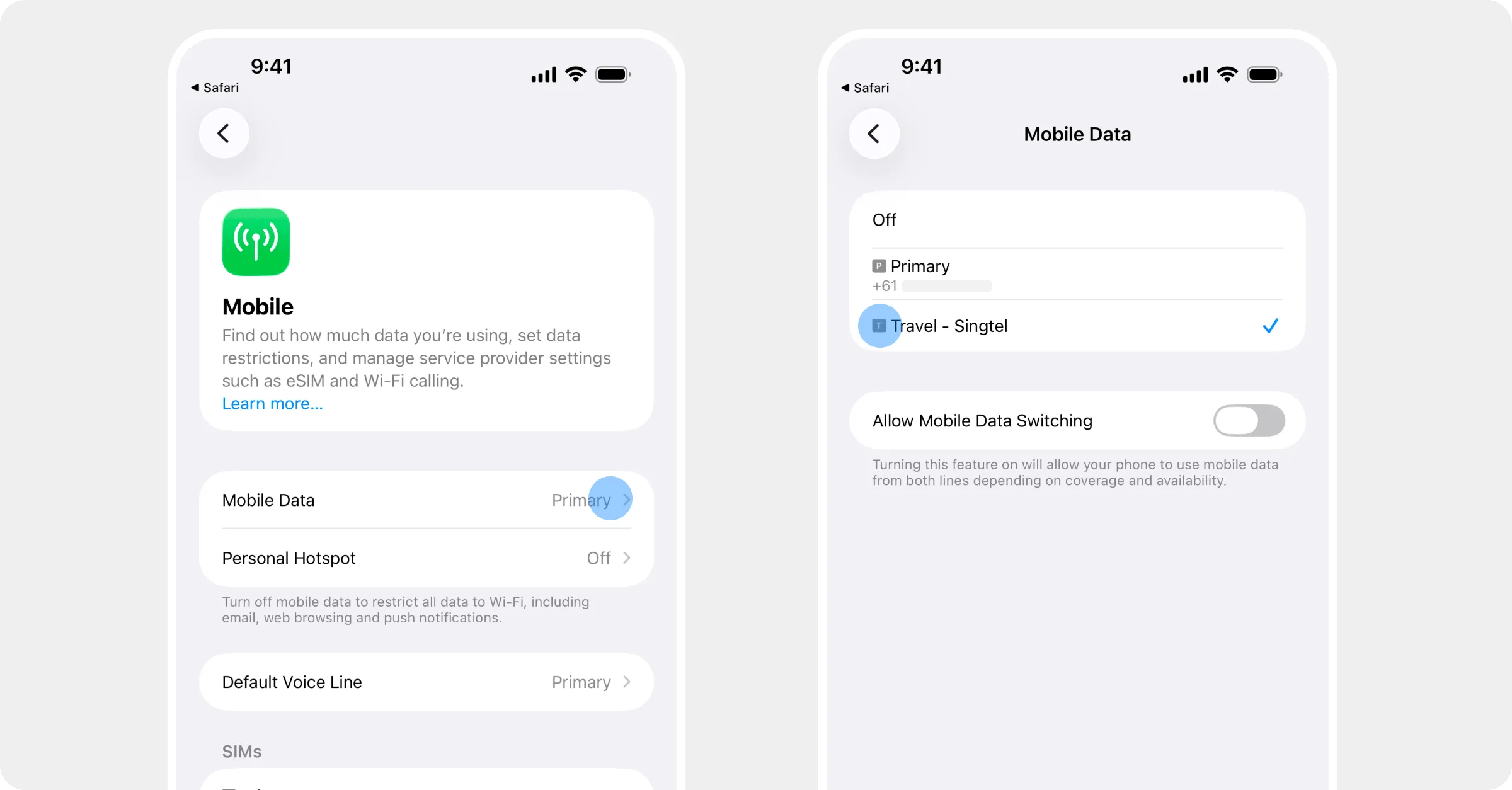
A framed screenshot with a caption