> ## Documentation Index
> Fetch the complete documentation index at: https://support.onroamly.com/llms.txt
> Use this file to discover all available pages before exploring further.
# Just landed? How to activate your eSIM
> Three switches get you online: turn the Roamly line on, select it for mobile data, and turn on Data Roaming for that line only.
Your eSIM is installed and waiting. When you land, three switches get you online, and your plan only starts counting once it connects. This takes about a minute, and it works before you have any data: the app shows the same steps on your plan page, offline.
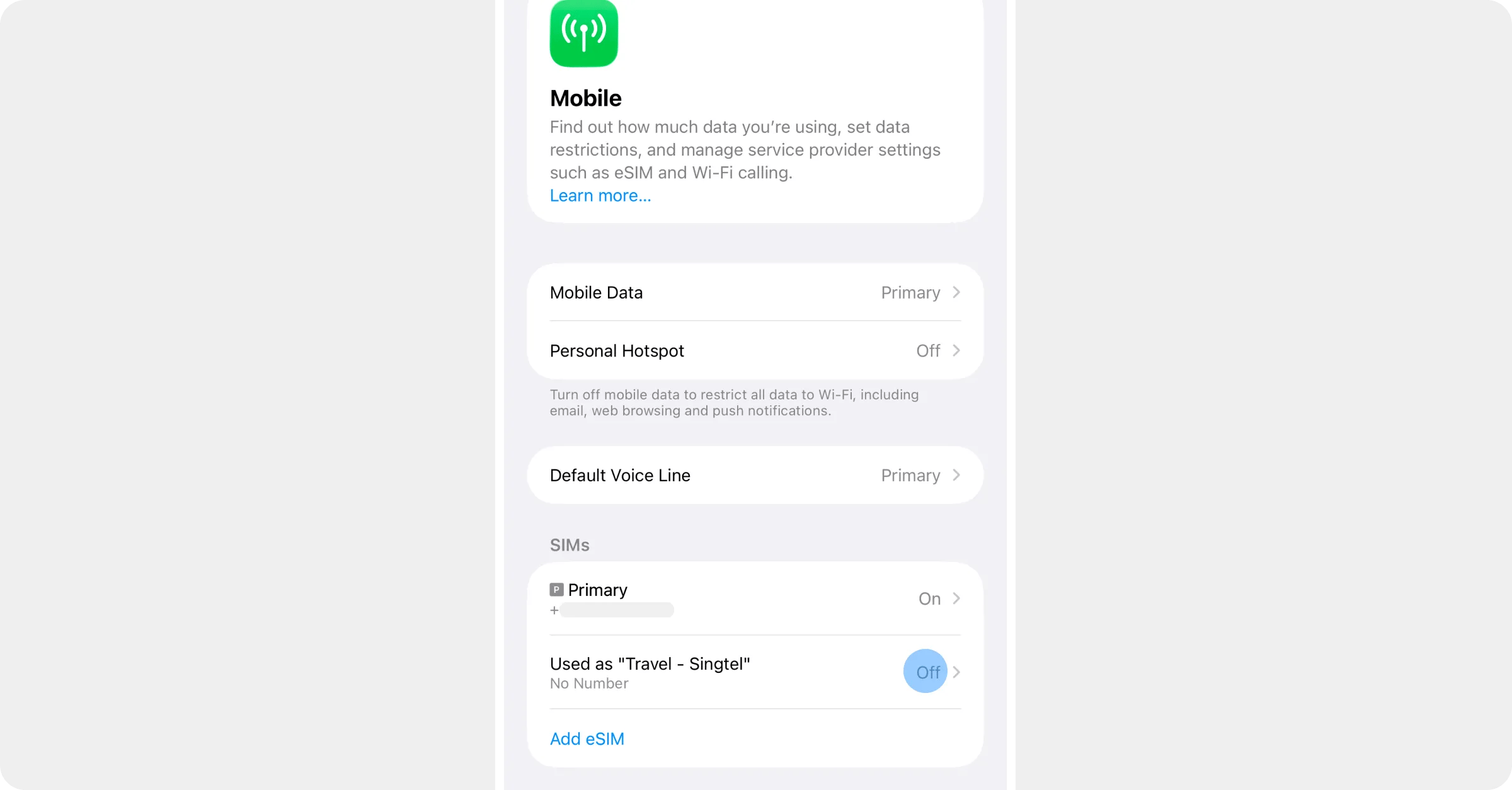
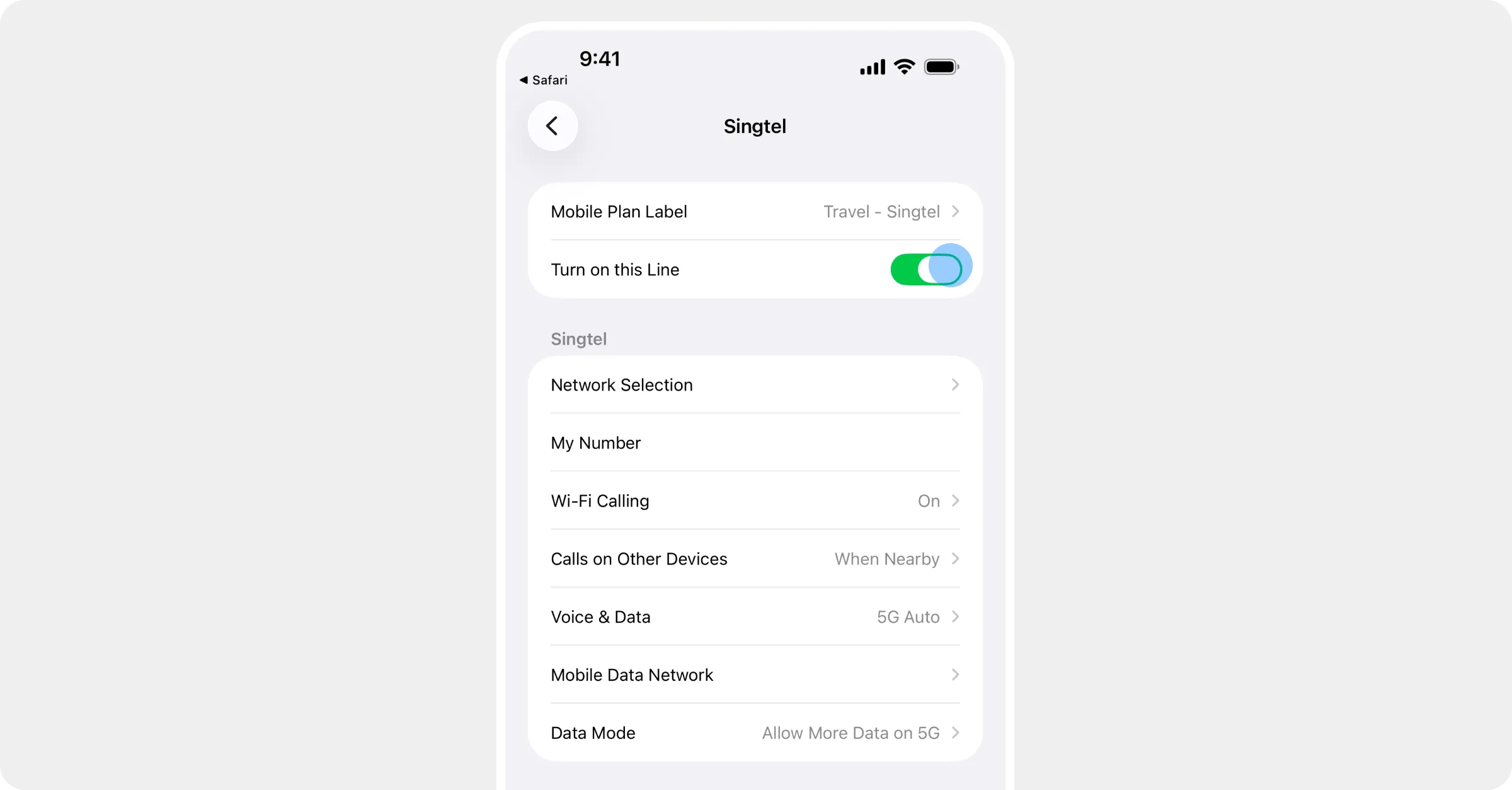
Open **Settings → Mobile** (older iPhones say *Mobile Service* or *Mobile Data*; some regions say *Cellular*). Under SIMs, tap your Roamly line and turn **Turn on this Line** on. It's usually labelled *Travel* or *Secondary* unless you renamed it, and iOS may add the network name after it.
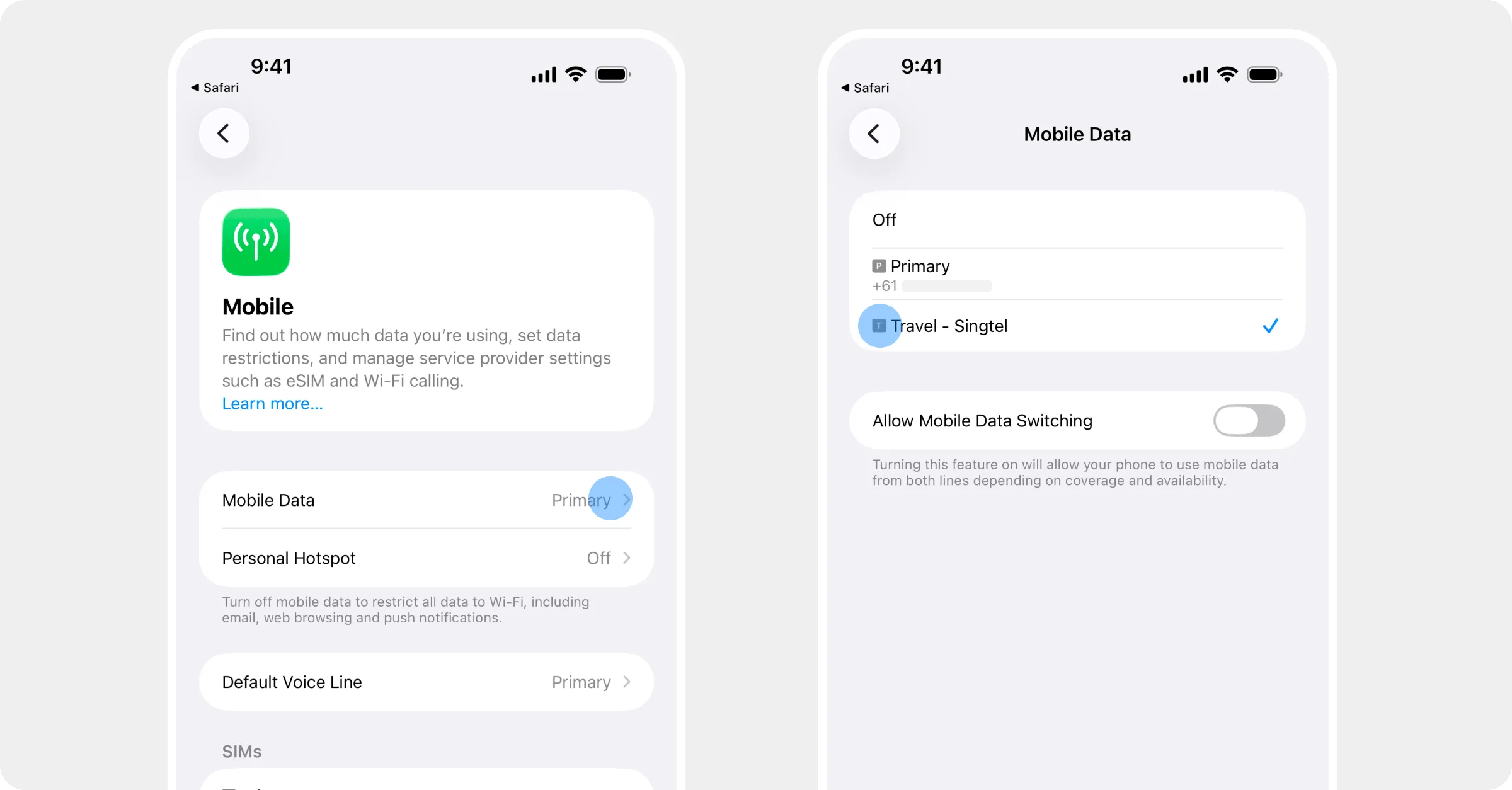
 Back in **Mobile**, tap **Mobile Data** at the top and choose your Roamly line. Only data switches over; if you've kept your normal SIM on, calls and texts stay with it. Leave **Allow Mobile Data Switching** off, so the phone can't quietly fall back to your normal SIM.
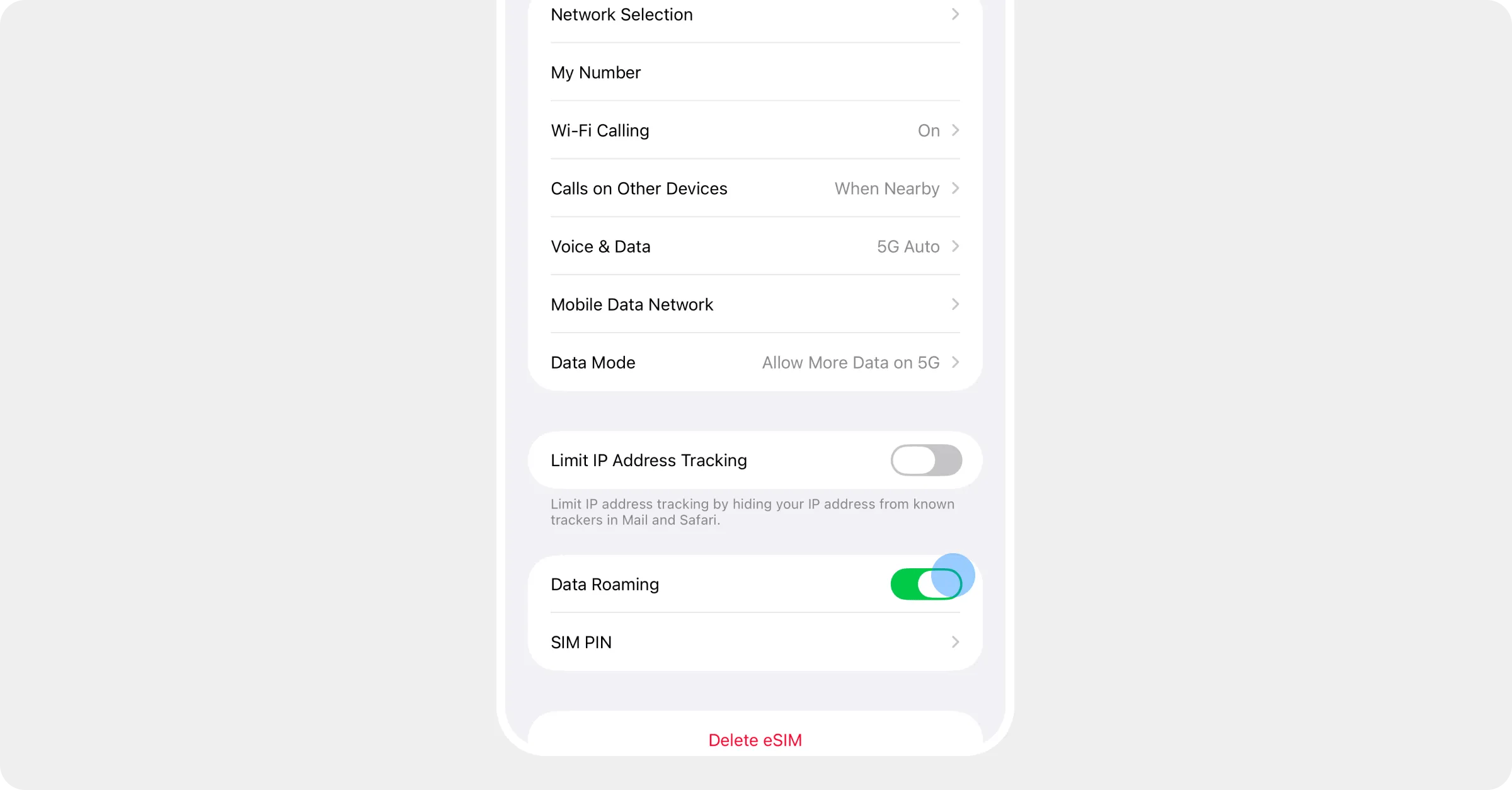
 Tap your Roamly line again and turn **Data Roaming** on. Roaming sounds scary; it isn't here. Your plan price is all you pay, and this switch just lets your phone use the local network. Only turn it on for the Roamly line.
 Most iPhones find the local network within a minute. If the status bar still shows no signal, flick **Airplane Mode** on for ten seconds and off again.
Open **Settings → Network & internet → SIMs** (Samsung: **Settings → Connections → SIM manager**). Tap your Roamly eSIM and turn **Use this SIM** on. It's usually labelled *Roamly* or *Travel* unless you renamed it.
On the same SIMs screen, tap **Mobile data** and choose your Roamly eSIM. Only data switches over; calls and texts stay with your normal SIM if it's on.
Tap your Roamly eSIM and turn **Roaming** on. On Samsung this lives at Settings → Connections → Mobile networks → **Data roaming**. Roaming sounds scary; it isn't here. Your plan price is all you pay, and this switch just lets your phone use the local network. Only turn it on for the Roamly SIM.
Most phones find the local network within a minute. If the status bar still shows no signal, turn **Airplane mode** on for ten seconds and off again.
You're online when the status bar shows signal on the Roamly line and a web page loads. Your plan page changes to **Active** once the eSIM has connected, and the days start counting from now.
## Your normal SIM
Leave its Data Roaming off, as you set it before you flew. Texts still arrive on your number, so bank codes get through, but calls and sent texts may be charged by your home carrier. If you switched that line off entirely for the trip, leave it off. See [Can I make calls or send texts?](/countries-and-plans/calls-and-texts)
## Not connecting?
If you've done the three switches and Airplane Mode and you're still offline after a couple of minutes, work through [Just landed and no data? Start here](/troubleshooting/at-your-destination/no-data-start-here). It picks up where this page leaves off: a restart, choosing a network by hand, and what to send us if nothing works.
## When you get home
Switch the Roamly line off and set your normal SIM back as the mobile data line. You can leave the eSIM installed if the plan still has days left, or delete it once it's expired. See [What happens when my plan expires?](/managing/plan-expires)
Most iPhones find the local network within a minute. If the status bar still shows no signal, flick **Airplane Mode** on for ten seconds and off again.
Open **Settings → Network & internet → SIMs** (Samsung: **Settings → Connections → SIM manager**). Tap your Roamly eSIM and turn **Use this SIM** on. It's usually labelled *Roamly* or *Travel* unless you renamed it.
On the same SIMs screen, tap **Mobile data** and choose your Roamly eSIM. Only data switches over; calls and texts stay with your normal SIM if it's on.
Tap your Roamly eSIM and turn **Roaming** on. On Samsung this lives at Settings → Connections → Mobile networks → **Data roaming**. Roaming sounds scary; it isn't here. Your plan price is all you pay, and this switch just lets your phone use the local network. Only turn it on for the Roamly SIM.
Most phones find the local network within a minute. If the status bar still shows no signal, turn **Airplane mode** on for ten seconds and off again.
You're online when the status bar shows signal on the Roamly line and a web page loads. Your plan page changes to **Active** once the eSIM has connected, and the days start counting from now.
## Your normal SIM
Leave its Data Roaming off, as you set it before you flew. Texts still arrive on your number, so bank codes get through, but calls and sent texts may be charged by your home carrier. If you switched that line off entirely for the trip, leave it off. See [Can I make calls or send texts?](/countries-and-plans/calls-and-texts)
## Not connecting?
If you've done the three switches and Airplane Mode and you're still offline after a couple of minutes, work through [Just landed and no data? Start here](/troubleshooting/at-your-destination/no-data-start-here). It picks up where this page leaves off: a restart, choosing a network by hand, and what to send us if nothing works.
## When you get home
Switch the Roamly line off and set your normal SIM back as the mobile data line. You can leave the eSIM installed if the plan still has days left, or delete it once it's expired. See [What happens when my plan expires?](/managing/plan-expires)