> ## Documentation Index
> Fetch the complete documentation index at: https://support.onroamly.com/llms.txt
> Use this file to discover all available pages before exploring further.
# Install with a QR code or manual setup
> For a different iPhone than the one you're signed in on: scan the QR code from another screen, or type the SM-DP+ address and activation code.
Use this when the eSIM is going on a different iPhone than the one you're signed in on — a family member's phone, or a phone you're setting up from your computer. If you're installing on the iPhone in your hand, [the app](/installing/iphone/app) or [Add to iPhone on the website](/installing/iphone/website) is quicker.
Whichever iPhone scans the code is the iPhone the eSIM lives on, permanently. Make sure it's the right one before you scan.
## Show the QR code
The code has to be on a *different* screen from the iPhone you're installing on: a computer, a tablet, or another phone.
* **Website:** sign in at [onroamly.com/my-esims](https://onroamly.com/my-esims), open the eSIM and tap **Scan QR code**.
* **Roamly app:** open the plan and tap **Install on another device**.
## Scan it
Go to **Settings → Mobile** (older iPhones say *Mobile Service* or *Mobile Data*; some regions say *Cellular*) and tap **Add eSIM**.
Point the camera at the code on the other screen. iOS recognises it and offers to add the eSIM.
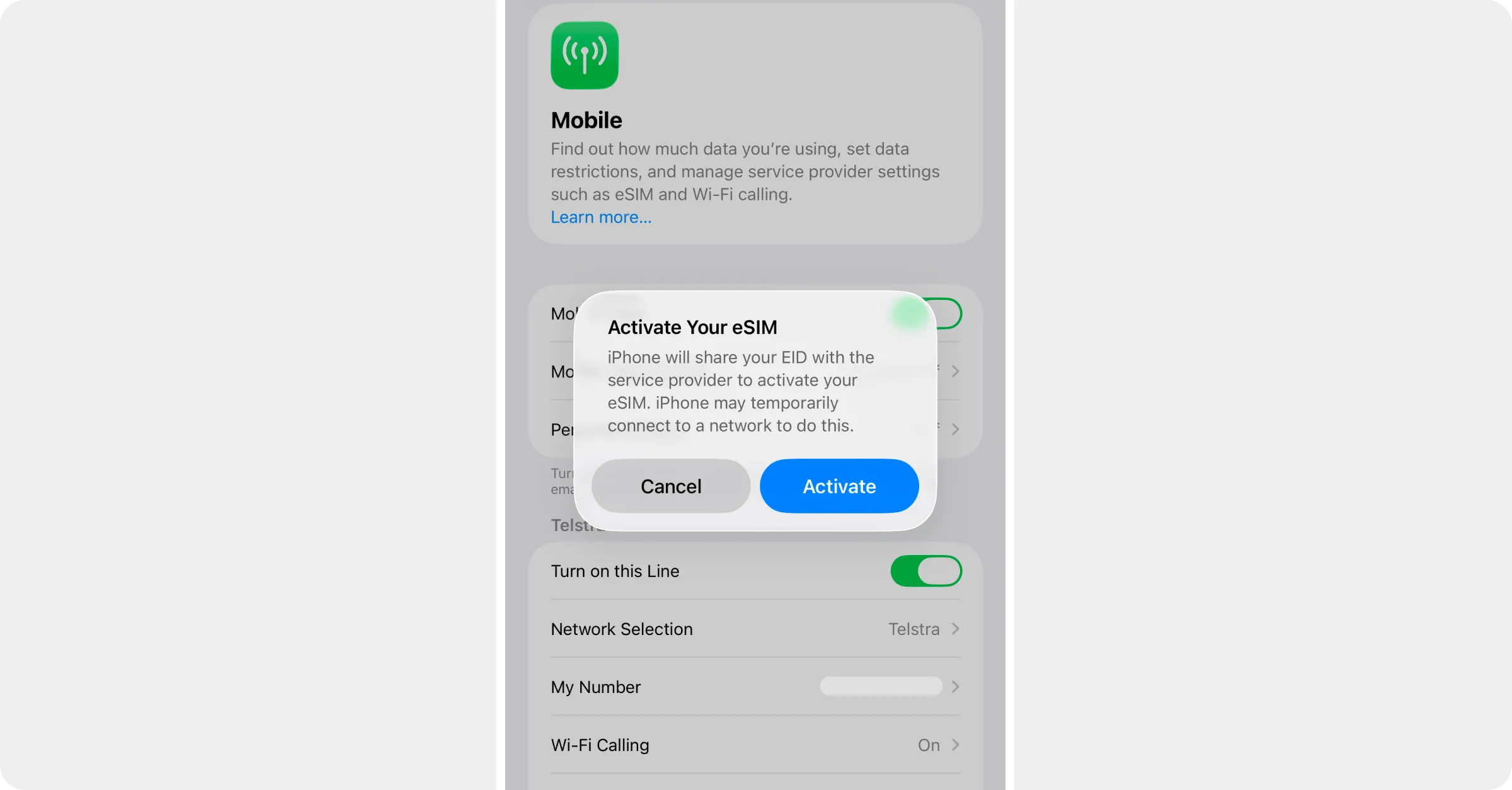
iOS opens Settings and asks to activate your eSIM. Tap **Activate**. The message about sharing your EID with the service provider is normal: it's how every eSIM is delivered to a phone.
 Give the line a label like *Travel*, keep the normal SIM as the default for calls and messages (Roamly is data-only), and keep it for mobile data for now.
Back in **Mobile**, tap the Roamly line and turn **Turn on this Line** off. Turn it on when you arrive.
## Manual setup (no camera, or the code won't scan)
You'll need two values from the same place as the QR code.
* **Website:** open the eSIM, tap **Manual setup**, and copy the **SM-DP+ address** and the **Activation code**.
* **Roamly app:** open the plan, go to **More → Technical → Manual activation** and copy the code. It's one line that starts with `LPA:1$`. The part between the first and second `$` is the SM-DP+ address; everything after the second `$` is the activation code.
On the iPhone, go to **Settings → Mobile → Add eSIM → Use QR Code**, then tap **Enter Details Manually** at the bottom of the camera screen.
Paste the SM-DP+ address and the activation code into their fields. Leave any other field blank, then tap **Next**.
Same prompts as above: label it, keep your normal SIM for calls and messages, keep it for data for now, then switch the Roamly line off until you land.
## Before you fly
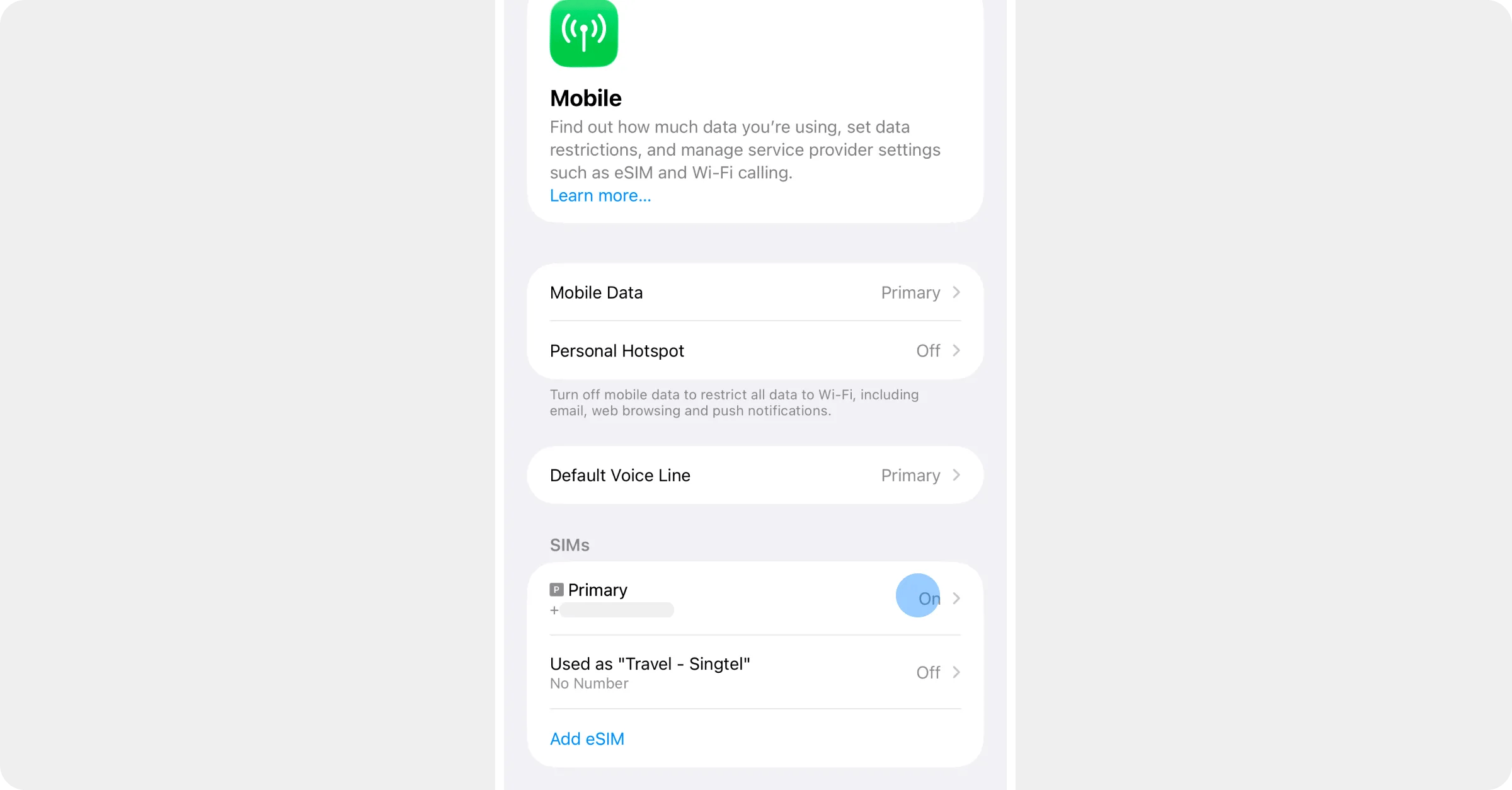
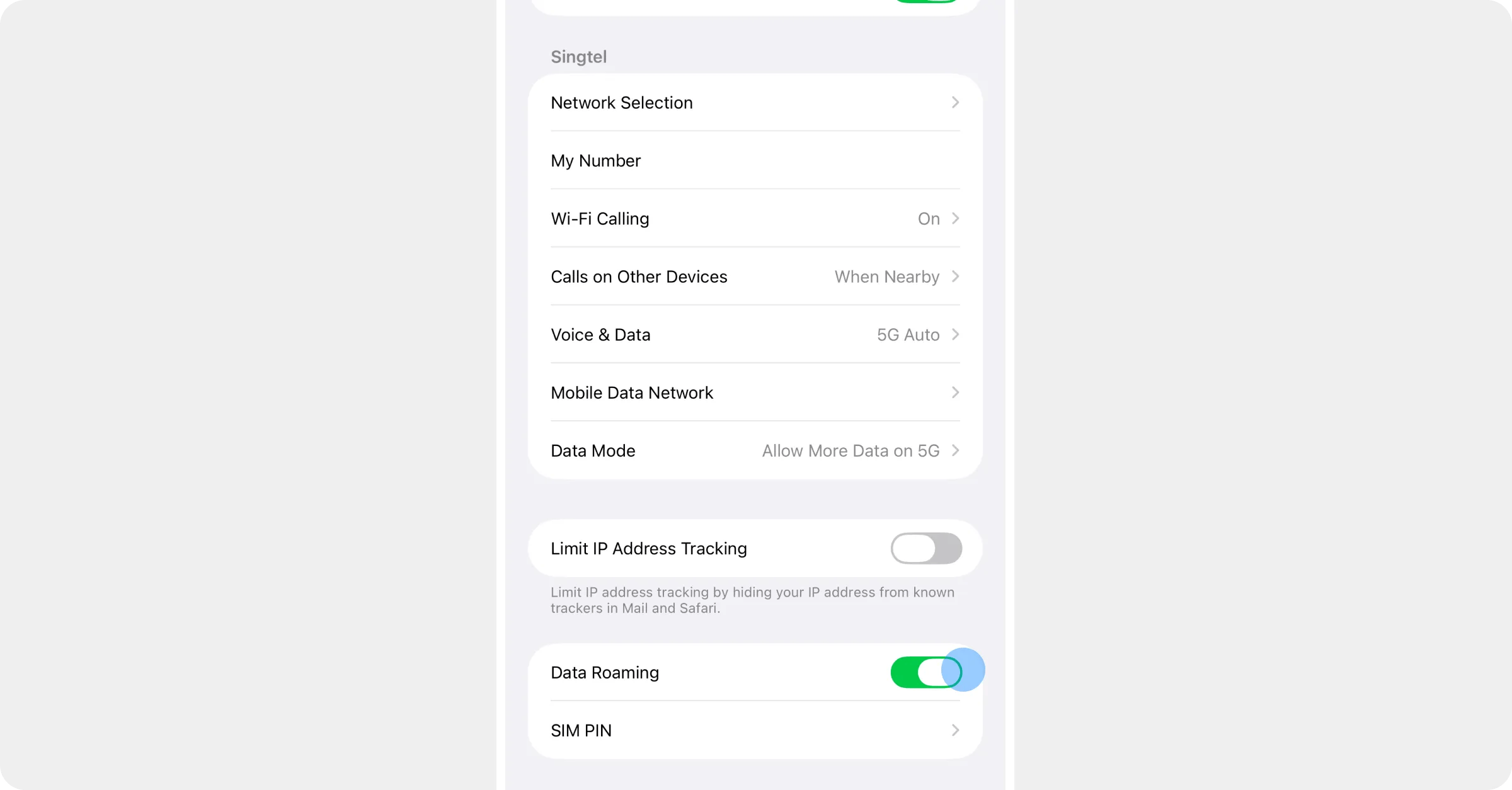
Turn off Data Roaming on your normal SIM while you're still at home: **Settings → Mobile**, tap your normal SIM under SIMs (usually labelled *Primary*), **Data Roaming** off. That's what stops your home carrier charging you overseas. If you won't need calls or texts on your number while you're away, you can turn that line off entirely instead. When you land, follow [Just landed? How to activate your eSIM](/installing/when-you-land).
Give the line a label like *Travel*, keep the normal SIM as the default for calls and messages (Roamly is data-only), and keep it for mobile data for now.
Back in **Mobile**, tap the Roamly line and turn **Turn on this Line** off. Turn it on when you arrive.
## Manual setup (no camera, or the code won't scan)
You'll need two values from the same place as the QR code.
* **Website:** open the eSIM, tap **Manual setup**, and copy the **SM-DP+ address** and the **Activation code**.
* **Roamly app:** open the plan, go to **More → Technical → Manual activation** and copy the code. It's one line that starts with `LPA:1$`. The part between the first and second `$` is the SM-DP+ address; everything after the second `$` is the activation code.
On the iPhone, go to **Settings → Mobile → Add eSIM → Use QR Code**, then tap **Enter Details Manually** at the bottom of the camera screen.
Paste the SM-DP+ address and the activation code into their fields. Leave any other field blank, then tap **Next**.
Same prompts as above: label it, keep your normal SIM for calls and messages, keep it for data for now, then switch the Roamly line off until you land.
## Before you fly
Turn off Data Roaming on your normal SIM while you're still at home: **Settings → Mobile**, tap your normal SIM under SIMs (usually labelled *Primary*), **Data Roaming** off. That's what stops your home carrier charging you overseas. If you won't need calls or texts on your number while you're away, you can turn that line off entirely instead. When you land, follow [Just landed? How to activate your eSIM](/installing/when-you-land).
 ## Something not working?
* iOS says the code is invalid or already used? The eSIM is probably already on another phone. See [I deleted my eSIM, or installed it on the wrong phone](/troubleshooting/before-you-go/deleted-or-wrong-phone).
* Anything else: [My eSIM won't install](/troubleshooting/before-you-go/wont-install).
## Something not working?
* iOS says the code is invalid or already used? The eSIM is probably already on another phone. See [I deleted my eSIM, or installed it on the wrong phone](/troubleshooting/before-you-go/deleted-or-wrong-phone).
* Anything else: [My eSIM won't install](/troubleshooting/before-you-go/wont-install).